
If a client has not completed their assessments before an appointment, you can complete appropriate measures with them during the appointment and enter their responses directly into SimplePractice. This can help clients who have difficulty accessing the Client Portal, using technology, or completing the forms independently, while keeping the evaluation moving forward. Read the instructions, questions, and response options as written, and record the client’s own answers.
Where to find the assessment
The location depends on how the measure was added to SimplePractice:
| Type of measure | Where to access it |
|---|---|
| SimplePractice’s built-in scored measures | Client chart → New → Scored measure |
| Measures built by Help Therapy because they were not available as built-in scored measures | Client chart → New → Other document |
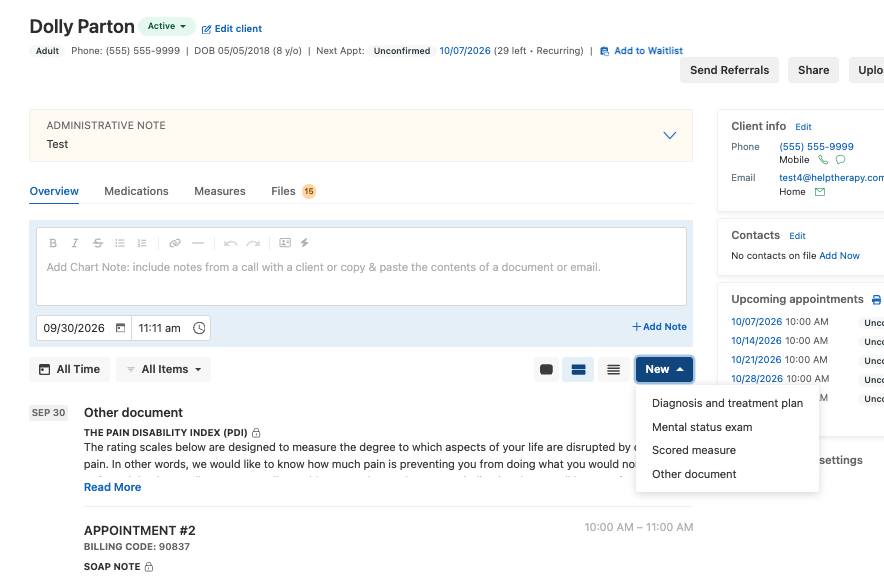
Option 1: SimplePractice built-in scored measures
- Open the client’s chart and go to the Overview page.
- Click New → Scored measure.
- If prompted, select the client you are completing the measure for, then click Continue to Scored measure.
- Select the appropriate measure from the dropdown.
- Read the instructions and each question to the client. Enter their responses directly into the measure.
- Click Save when finished. Review the saved responses and score in the client’s chart.
The completed measure is saved to the client’s profile and identified as completed by a clinician on the client’s behalf.
Option 2: Measures built by Help Therapy
- Open the client’s chart and go to the Overview page.
- Click New → Other document.
- Under Other document, open the dropdown and select the measure you need. Choose the in-session version when available.
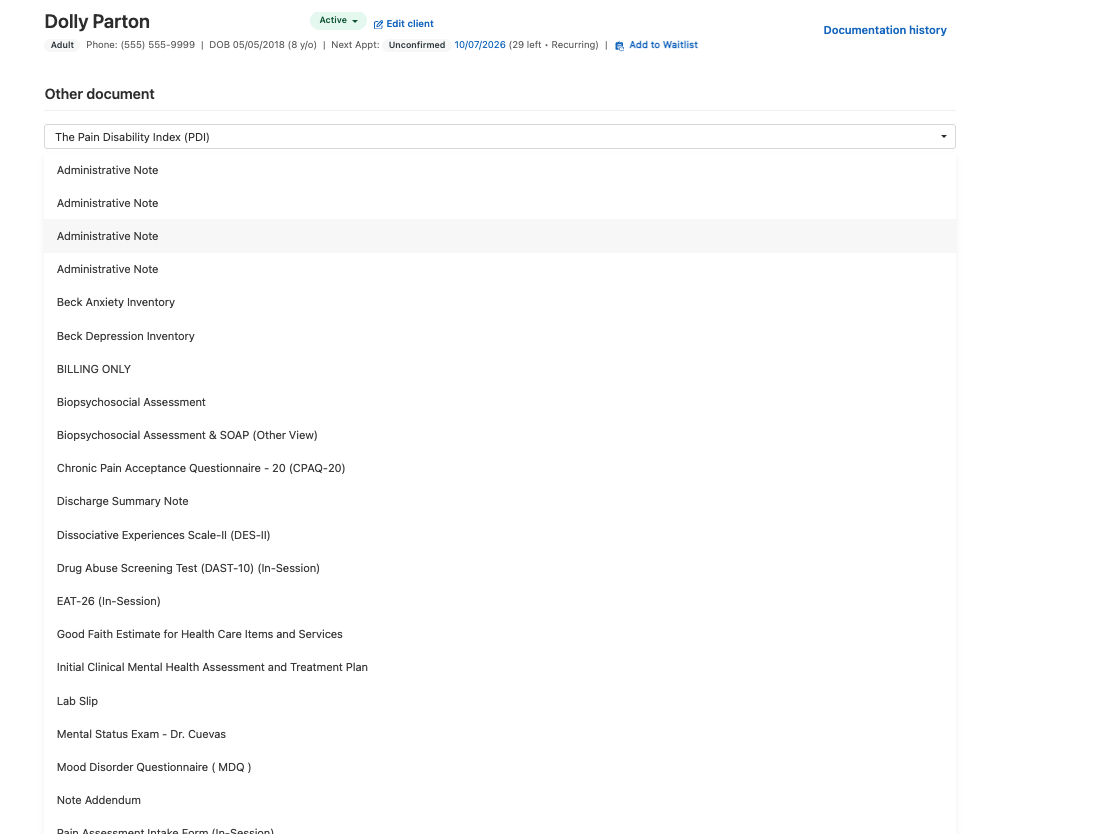
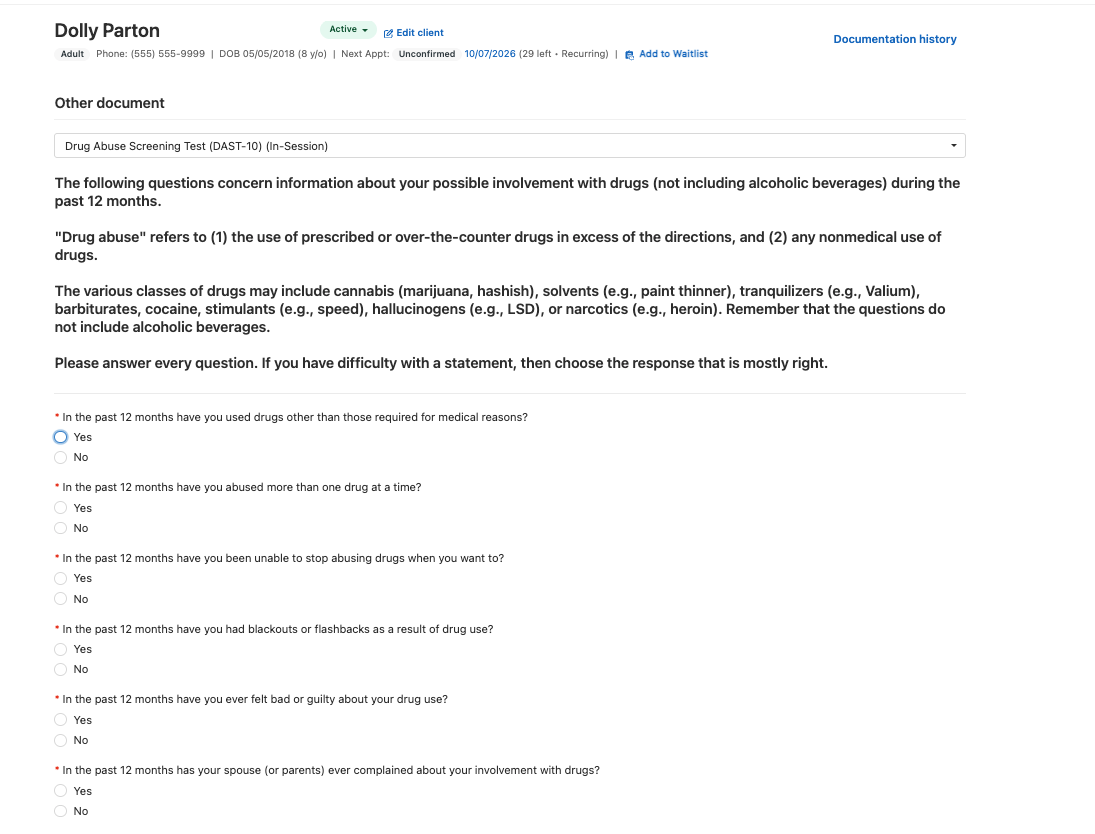
- Read the measure’s instructions, questions, and response options to the client during the appointment.
- Enter the client’s responses in the template as you go.
- Complete scoring according to the measure’s scoring instructions. Do not assume a Help Therapy template calculates the score automatically.
- Click Save when finished.
- Review the saved responses, then click Sign in the upper-right corner of the completed document and follow the prompts to sign the results.
- Return to the client’s Overview page. Find the saved measure in the chart timeline under Other document. Open the entry to review the recorded responses and results, and record the score and relevant findings in your appointment note.
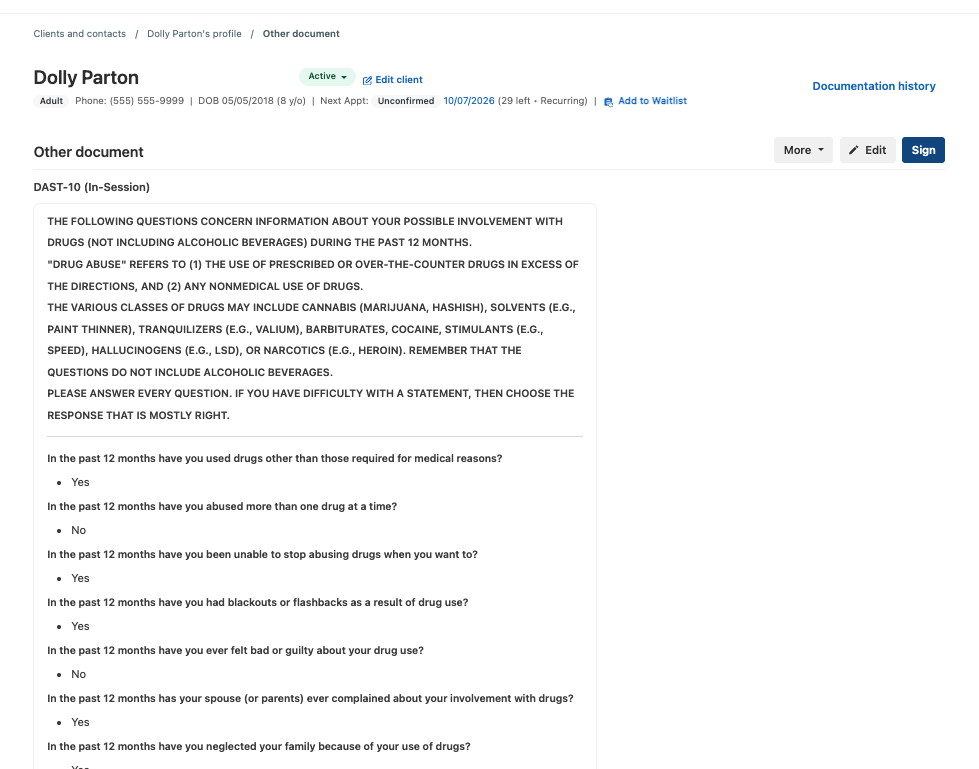
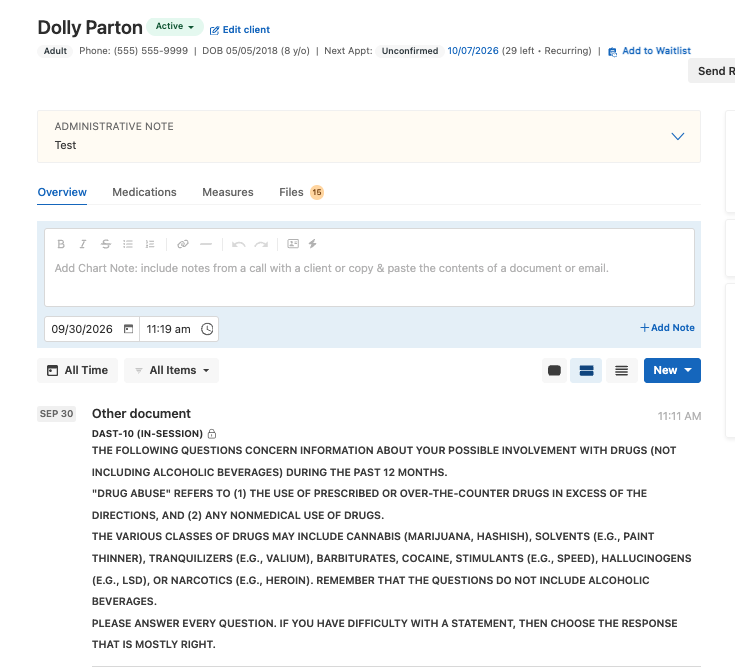
Saving the template places the completed assessment in the client’s chart documentation. It does not replace your appointment note.
Documenting the appointment
In your appointment note, record which measures were administered, that they were completed verbally, the results and clinical findings, and the actual time spent administering and scoring them. Note any administration limitations that affect interpretation.
Billing and the first appointment
When these measures are part of a psychological evaluation battery, eligible administration and scoring time may be included in the battery’s testing time, subject to the applicable code requirements, authorization, and payer rules.
Help Therapy recommends that assessment codes be billed on the same day as the 90791 appointment or a later date of service, not on a prior date.
Document interview and testing time separately. Do not count the same time toward both services, and do not automatically add testing evaluation/report-writing codes simply because a measure was completed.
If you cannot find a measure
Check both New → Scored measure and New → Other document. If the measure is still unavailable, contact Help Therapy for assistance.
SimplePractice reference: Using scored measures. Billing is subject to the client’s applicable payer requirements.